
By EEDIY Team. Difficulty ★ · About 15 minutes
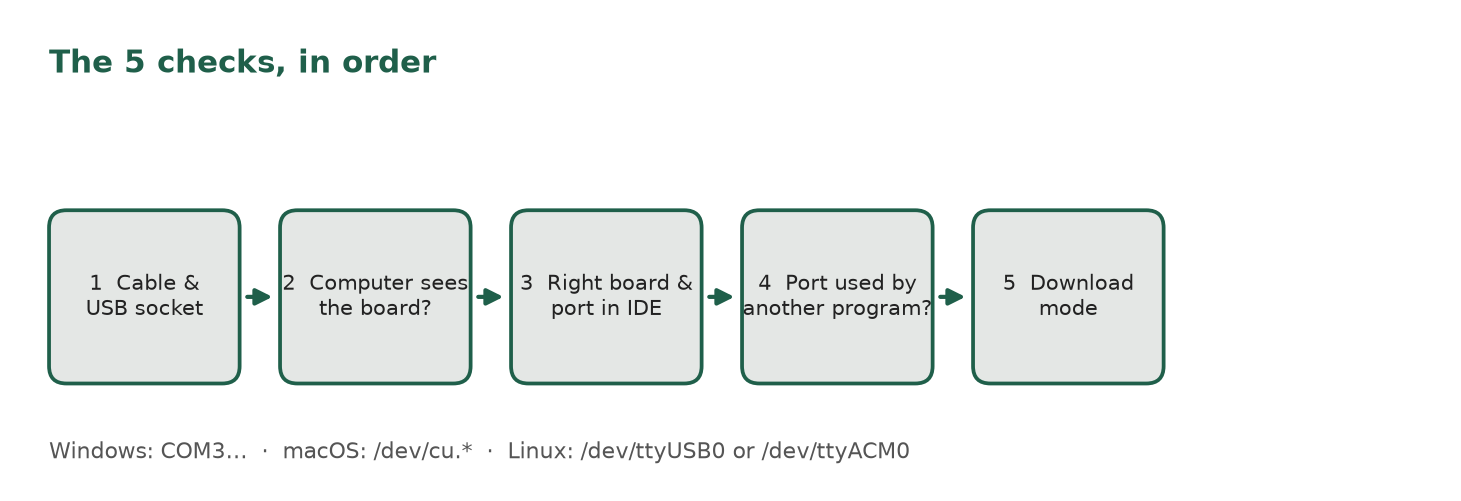
You clicked Upload, waited, and got a red error instead of a blinking LED. Don’t worry. This is the most common first-day problem with an ESP32, and it is almost never a broken board. Work through these five checks in order. Cable and driver problems are the most common causes, so start there.
This post assumes you already installed the Arduino IDE and ESP32 support. If not, start with Your first ESP32: install Arduino IDE and blink an LED.
What you need
- Your ESP32 development board
- The USB cable you used, plus one other cable if you have it
- Your computer with the Arduino IDE open
Words to know
- USB-to-UART bridge: a small chip on many ESP32 boards that turns USB into the serial signal the ESP32 understands. It’s usually near the USB socket.
- Port: the name your computer gives the board when it’s plugged in, like
COM3on Windows,/dev/ttyUSB0on Linux or/dev/cu.usbserial-…on macOS. - Download mode: a special start-up mode where the ESP32 waits for new code. The upload only works when the chip is in this mode.
- BOOT and EN/RESET buttons: the two small buttons on most boards. BOOT holds the boot pin low (GPIO0 on the classic ESP32 and ESP32-S3, GPIO9 on the ESP32-C6); EN (or RST) restarts the chip.
- Baud rate: how fast data moves over the serial link.
First, read the error
Scroll the black output panel at the bottom of the Arduino IDE up to the first red line. It tells you which check to start with:
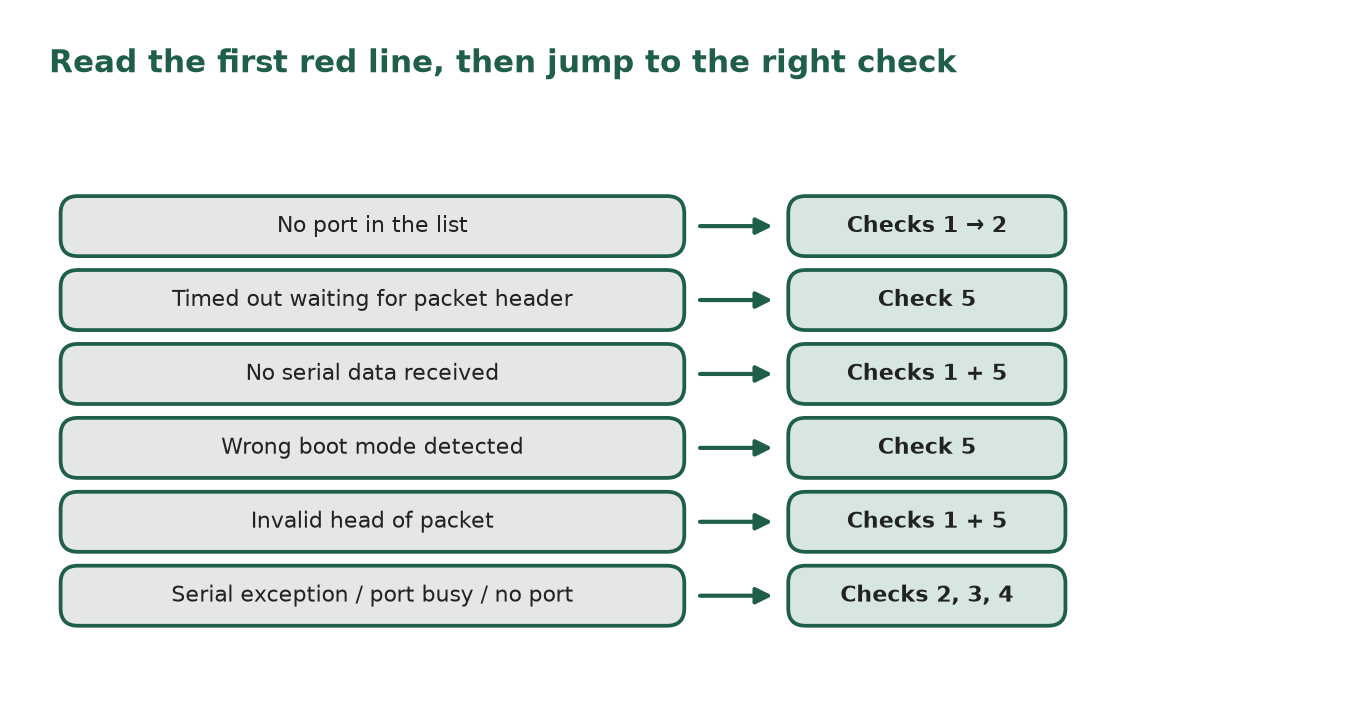
| What you see | Most likely cause | Start at |
|---|---|---|
| No port in the list at all | Cable or driver | Check 1, then 2 |
Failed to connect to ESP32: Timed out waiting for packet header |
Board not entering download mode | Check 5 |
No serial data received |
Hardware connection or reset into download mode | Checks 1 and 5 |
Wrong boot mode detected |
Board talks, but isn’t reset into download mode | Check 5 |
Invalid head of packet |
Bad cable, breadboard shorting pins, or weak power | Checks 1 and 5 |
A serial exception error occurred / port busy / port doesn’t exist |
Wrong port, port used by another program, driver, or permissions | Checks 2, 3 and 4 |
Check 1: The cable and the USB socket
- Swap to a different USB cable. Some cables only carry power for charging and have no data wires, so the computer never sees the board.
- Plug straight into the computer, not into a USB hub or a keyboard socket.
- Try a different USB socket on the computer.
Tip: if you find a cable that works, label it “DATA” with tape so you don’t mix it up again.
Check 2: Does the computer see the board?
- Windows: open Device Manager and expand Ports (COM & LPT). Unplug the board, then plug it back in. The port that disappears and comes back is your board.
- macOS: open Terminal and run
ls /dev/cu.*with the board unplugged, then again with it plugged in. The new name is your board. - Linux: run
ls /dev/tty*unplugged and plugged in, and look for the new entry (often/dev/ttyUSB0or/dev/ttyACM0). - If nothing new appears, the driver for the USB-to-UART bridge may be missing. Read the chip name near the USB socket (or in your board’s guide). Espressif lists drivers for the two chips used on most Espressif boards: CP210x (Silicon Labs) and FTDI. Normally the operating system installs these by itself.
- Tip: many low-cost boards use a different bridge chip, such as a CH340. Search the chip maker’s own website for its driver; avoid random driver download sites.
- Linux only: if the port exists but you get a permission error, add yourself to the serial group with
sudo usermod -a -G dialout $USER(on Arch Linux the group isuucp), then log out and back in.
Check 3: The right board and the right port in the IDE
The board setting tells the IDE how to build and upload your code. The port setting tells it which real device to talk to. Both must be right.
- Open Tools > Board and choose the entry that matches the chip on your board, for example ESP32 Dev Module for a classic ESP32 or ESP32C6 Dev Module for an ESP32-C6.
- Open Tools > Port and choose the port you found in Check 2. In Arduino IDE 2 you can also use the board selector at the top of the window.
- Note: in Arduino IDE 2, the Port menu doesn’t show at all if the IDE detects no ports. That sends you back to Checks 1 and 2.
Check 4: Is another program using the port?
Only one program can use a serial port at a time.
- Close other serial programs that might have the board open: PuTTY,
screen, another Arduino IDE window, or any other app that talks to serial devices. - On macOS or Linux, if you used
screen, exit it properly with Ctrl-A then K. Just closing the window can leave the port locked. - Try the upload again.
Check 5: Help the board into download mode
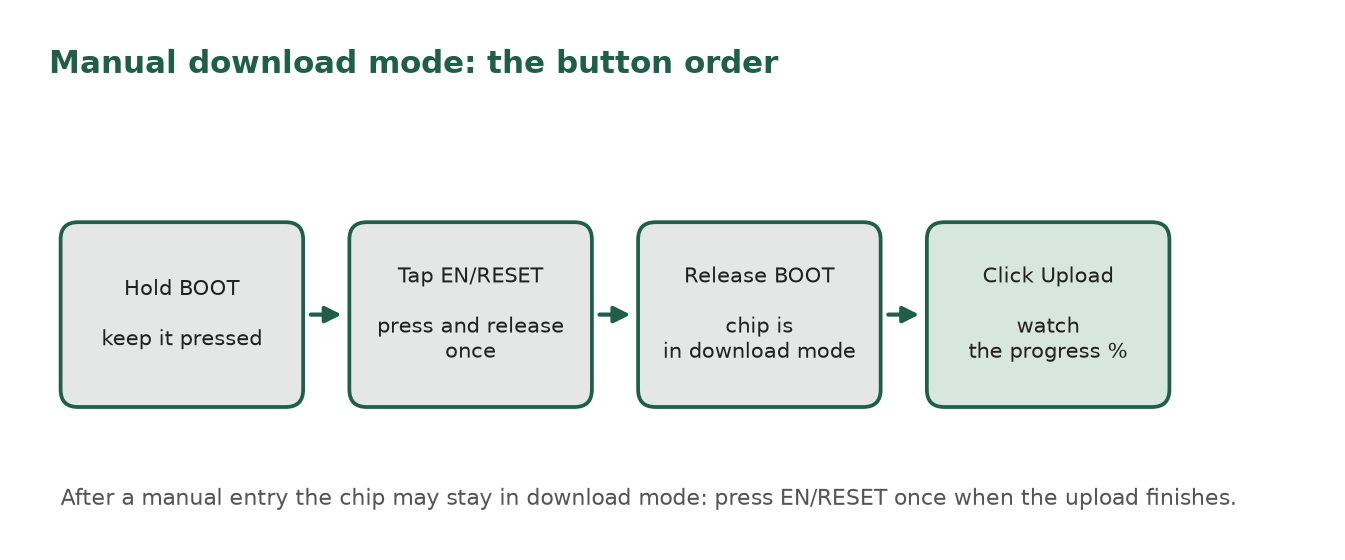
To accept new code, the chip must start with its boot pin (the one wired to BOOT) held low. Many boards do this automatically, but not all of them, and not always.
- Manual method: press and hold BOOT, press and release EN/RESET once, then release BOOT. Now click Upload.
- If that still fails: click Upload, and when the output shows
Connecting…, keep holding BOOT until the upload is under way (progress percentages appear). - Unplug your circuit. Remove anything connected to the pins labelled TX and RX, and anything on other GPIO pins, then try again.
- Lift the board off the breadboard. Espressif notes that a breadboard can sometimes short the flash pins and cause upload errors. Upload with the board sitting on its own.
- Slow it down. A lower serial speed can get past a noisy connection. If your Tools menu shows Upload Speed, choose a lower value and try again.
- Power: if you power the board from its pins instead of USB, double-check the wiring. The chip needs a stable 3.3 V supply, and on some boards it is easy to mix up the CMD pin (usually next to 5V) with GND.
Expected result
The output panel shows the upload progressing to 100%, the board restarts by itself, and your sketch runs (for the blink sketch, the LED flashes once per second). If the board doesn’t restart, press EN/RESET once. After you enter download mode by hand, the chip can stay in download mode until you press EN or power-cycle it.
Common mistakes
| Problem | Fix |
|---|---|
| Changed the cable but used the same charge-only one from the drawer | Tip: test cables with a board you know works and label the good ones |
| Picked the wrong COM port because several are listed | Unplug and replug the board and watch which port disappears and returns |
| Held BOOT the whole time on a board that needs a reset | Use the full order: hold BOOT, tap EN/RESET, release BOOT, then upload |
| Uploads work, but nothing prints in Serial Monitor | On newer ESP32 chips (not the classic ESP32) the board may have two USB sockets: one through a USB-to-UART bridge and one native USB. Match Tools > USB CDC On Boot to the socket you use: disabled for the UART socket, enabled for the native USB socket. For the native USB socket, also set Tools > USB Mode to Hardware CDC and JTAG |
| Left a sensor wired to TX/RX | Disconnect it for uploading, or move it to other pins |
Still stuck?
Post in the ESP32 & MCUs forum with three things: your board name, your operating system, and the first red line of the error. That’s usually enough for someone to spot the problem.
Sources
- Espressif, Arduino-ESP32 troubleshooting (charge-only cables, avoid hubs, TX/RX pins, BOOT button, “Timed out waiting for packet header”, missing driver, USB CDC On Boot): https://docs.espressif.com/projects/arduino-esp32/en/latest/troubleshooting.html
- Espressif, esptool troubleshooting (open serial terminal blocking the port, breadboard shorting flash pins, lower baud rate, 3.3 V supply, common error messages): https://docs.espressif.com/projects/esptool/en/latest/esp32/troubleshooting.html
- Espressif, ESP-IDF “Establish Serial Connection with ESP32” (CP210x/FTDI drivers, finding the port on Windows/macOS/Linux, dialout/uucp group, manual BOOT + RESET, closing screen with Ctrl-A K): https://docs.espressif.com/projects/esp-idf/en/stable/esp32/get-started/establish-serial-connection.html
- Arduino Help Center, “Select board and port in Arduino IDE” (board vs port, IDE 2 Port menu hidden when no ports): https://support.arduino.cc/hc/en-us/articles/4406856349970-Select-board-and-port-in-Arduino-IDE
Keep going
- Free tools for beginners
- Stuck or finished? Ask or share in the forum
- Make your first PCB — tell us you are interested